
EDIT: This solution + deployment is now available for sale!
As someone on a never ending quest for improvement, one of the areas where I was significantly lacking and diligently worked to improve, has been my inbox management.
I confess – like most of you out there, at one point my gmail inbox had 50,000+ unread emails. There seemed no way to be able to clear this backlog and it cluttered a corner of my mind, similar to the garbage mountains of Delhi (link)
Through a combination of luck, sheer will power and tremendous support, I embarked upon the journey of cleaning the Mt. Everest of garbage from my inbox. Through a consistent painstaking manual combing effort of a few months, I managed to bulk clean my junk down to a few thousand unread ones.
I followed a simple strategy of batch block and batch delete. Every gmail page load showed 50/ 100 emails. A quick scan showed if any of them could possibly be useful. I would mark all maybe(s) with a maybe label, and then the rest of the emails on the page were subject to bulk delete.
In the above strategy, for repeated emails from the same sender, I applied the “Block sender” and “Mark as spam” tags.
Once the number reduced to a manageable number, (few thousands) which didn’t need a special one-time large scale effort, I then began the work of applying checks and measures to ensure this trash mountain never re-appears.
I did the following three things:
- Segmentation labels
- Incoming filters
- Disposal management
1. Segmentation labels
Having spent months on my inbox, I was well aware of the kinds of emails I receive. One of the key things I realised was that there are some emails which maybe time-sensitive and require a response/ action at my end in a timely manner, but there are also several emails which are just for record keeping/ information sharing and do not require a time-sensitive response from me.
I started to create a segmentation system to separate such emails that required my timely attention vs the ones that didn’t require timely attention. And I built something that looks like this:
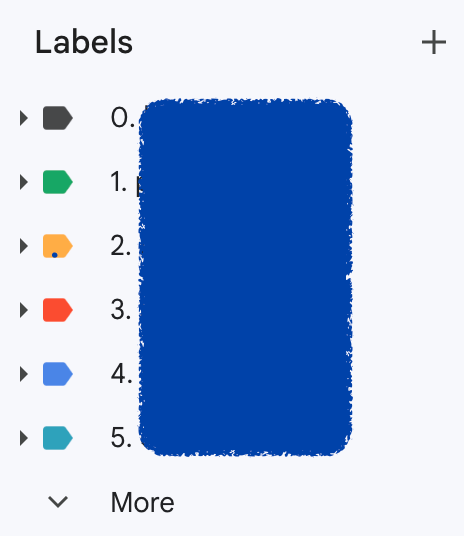
Each of the labels has a sub-category label and it looks something like this:
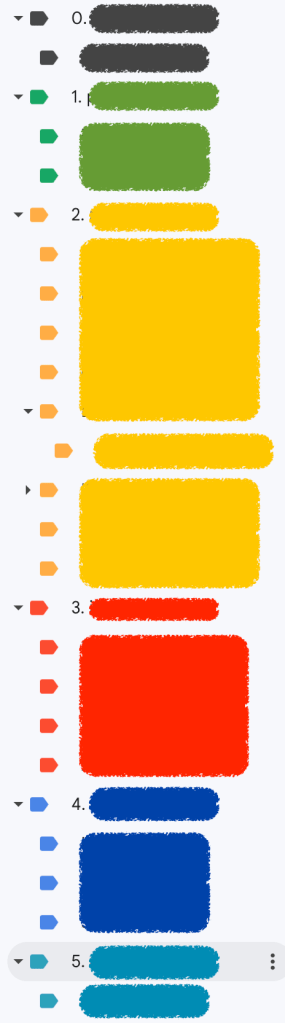
All these labels have emails which are important but not time-sensitive – neither from the perspective of my attention, nor from the perspective of the expectation of a response.
Hence, these emails have no need to show up in my main inbox folder, which now, I’m able to reserve for emails requiring actual attention and/ or a prompt response.
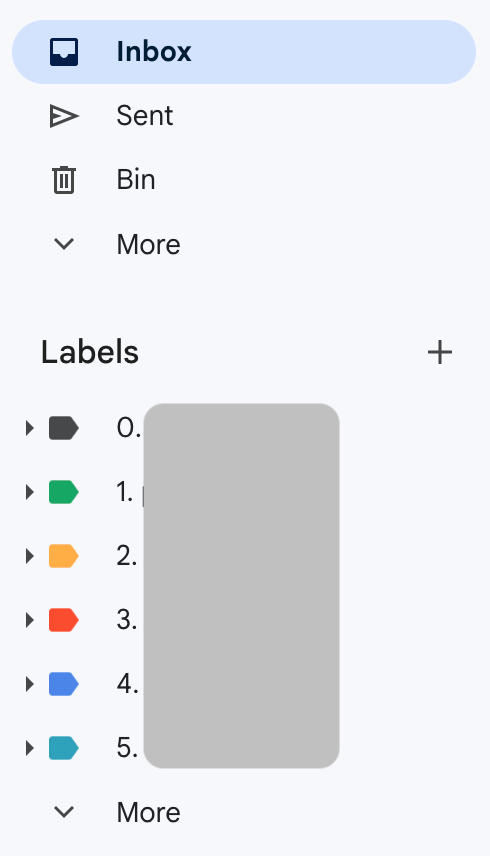
The main inbox remains clean. And I’m proud to say this:
I’ve been maintaining an inbox-zero since 2020
2. Incoming filters
Next, I applied filters to screen incoming mails. So many emails deserve to be directly junked. This section also helps maintain your inbox structure when engaging with a large enterprise like a bank.
Example: Banks often use several email IDs such as statement@bank.com, alert@bank.com, transaction@bank.com, marketing@bank.com, promotion@bank.com, notification@bank.com etc…
Only one or two of these email IDs may require a timely response or even just a response. That’s where the filters are most useful.
I have created specific filters to screen and redirect incoming mails from known spam offenders, genuine enterprises that don’t understand ‘no’ when it comes to marketing push and clueless companies who haven’t yet learnt the art of streamlining their customer communication.

Over time, I’ve created, and refined a total of ~70 such filters.
3. Disposal management
What happens when you’ve managed the inputs… the next step is to manage the outputs. In this case, that refers to spam and trash clearance.
I do this for two reasons:
- Spam and trash mails use up valuable account space
- ‘Clean inbox, clear mind’ only happens with complete garbage disposal 🙂
This is something which can be done manually, but I created a script which eliminates any need for manual intervention.
I have hosted the script live and it does the exact two mentioned things on set timeline.
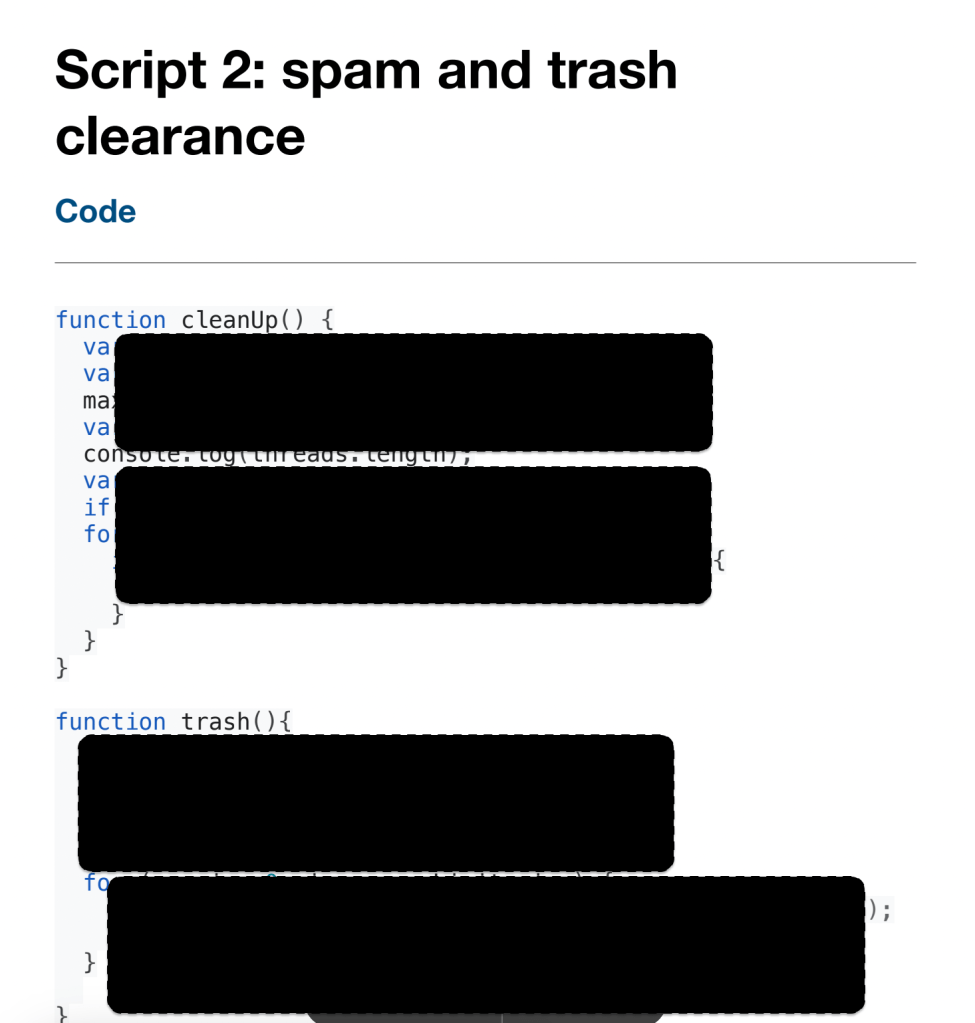
- Spam script runs every 2 hours, deletes every email with an existence of over 24 hours
- Trash script also runs every 2 hours, deletes everything in trash
Snippets of the actual scripts..


Bonus script
As someone who has lived outside India for several years in multiple countries, I’ve often had to manage more than one phone number. This is true for other high performance individuals as well.
At one point, there was a situation where one of the phone numbers was needed only for OTP verifications of Indian payments methods and related services.
Running a phone and receiving SMSs on international roaming for years can be significantly costly. I created this solution to leave my phone in India and still receive all relevant OTPs in my inbox!
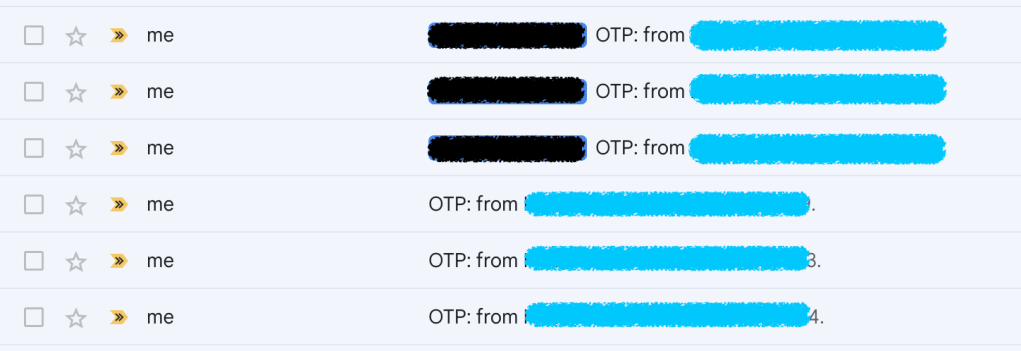
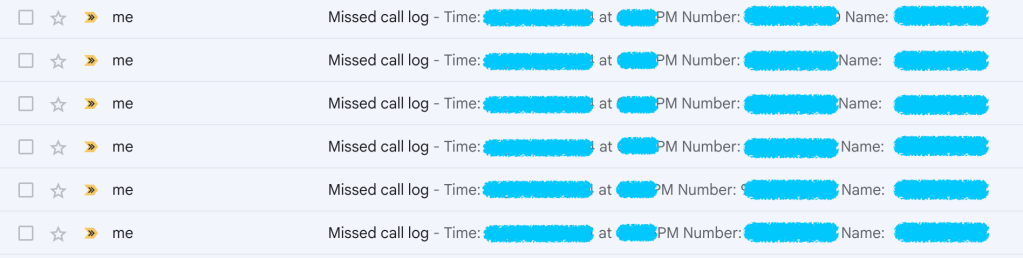
Scripts and implementation instructions are included in the freely downloadable PDF from the previous section.
EDIT: scripts and implementation instructions are now available for sale!
 Pulkit Saraf